A Project in Perplexity is a folder with a memory
Here is what I mean. Normally every conversation you have with an AI is on its own. A Project is a folder that holds your conversations, your files, your instructions, your connected tools, your skills and your scheduled jobs in one place, and everything inside it can see everything else inside it. Nothing outside it leaks in. One word while we are here: Perplexity calls each conversation a session. You will see that word a lot.
Let me walk you around one, because people skip this and then wonder where things are. The Project home has a text box at the top where you start a session. Below it, your sessions and your artifacts, which are the files the agents made. On the right, a column with Instructions, Sources, Skills and Automations, and a See all settings button. Settings opens the full set: General, Members, Sources, Automations, Memory, Integrations, Plugins, which is where your connectors live, Skills and Credential vault. You will touch five of those in this module. The rest you will meet in later modules when they matter.
The layout I use for every business is simple
One Project for the business. Your Material folder from module 5 and your sketch from module 3 attached under Sources. A short set of instructions that tells every session who you are, which is Block C from module 5. Then each agent works in its own session inside that Project, named for the job: Foundation, Operations Agent, Sales Agent, Email Agent, Weekly Review. Everything the agents save lands in the Project files, which is the table they all read from. Module 12 shows that in detail.
Two reasons for that layout
First, focus. Each agent needs your business profile plus a little about its own job. Keeping jobs in their own sessions means the Email Agent is never dragging around the Ads Agent’s history. Second, cost. Every message you send in a session makes it re read the whole session. A long thread with everything in it costs more every single time you type. Short sessions are cheaper sessions.
A few limits so you do not hit them by surprise
A Project title is 50 characters. The description is 1,000. The instructions are 8,000. Files: ten thousand per Project, five gigabytes total, one hundred megabytes per file, any type. Files you add from Drive are copies, so if you change the original you add it again. Projects are private by default and you can invite up to five people on a personal account.
If you run an agency, it is one Project per client, same shape, and the agents that apply to every client sit at the account level. If you have a team, one Project, everyone invited, personal memory off so you all see the same picture. The table below has the three layouts.
What you do, step by step
Click Projects in the left sidebar.
Click New project at the top of the list. A dialog opens asking for a name and a description.
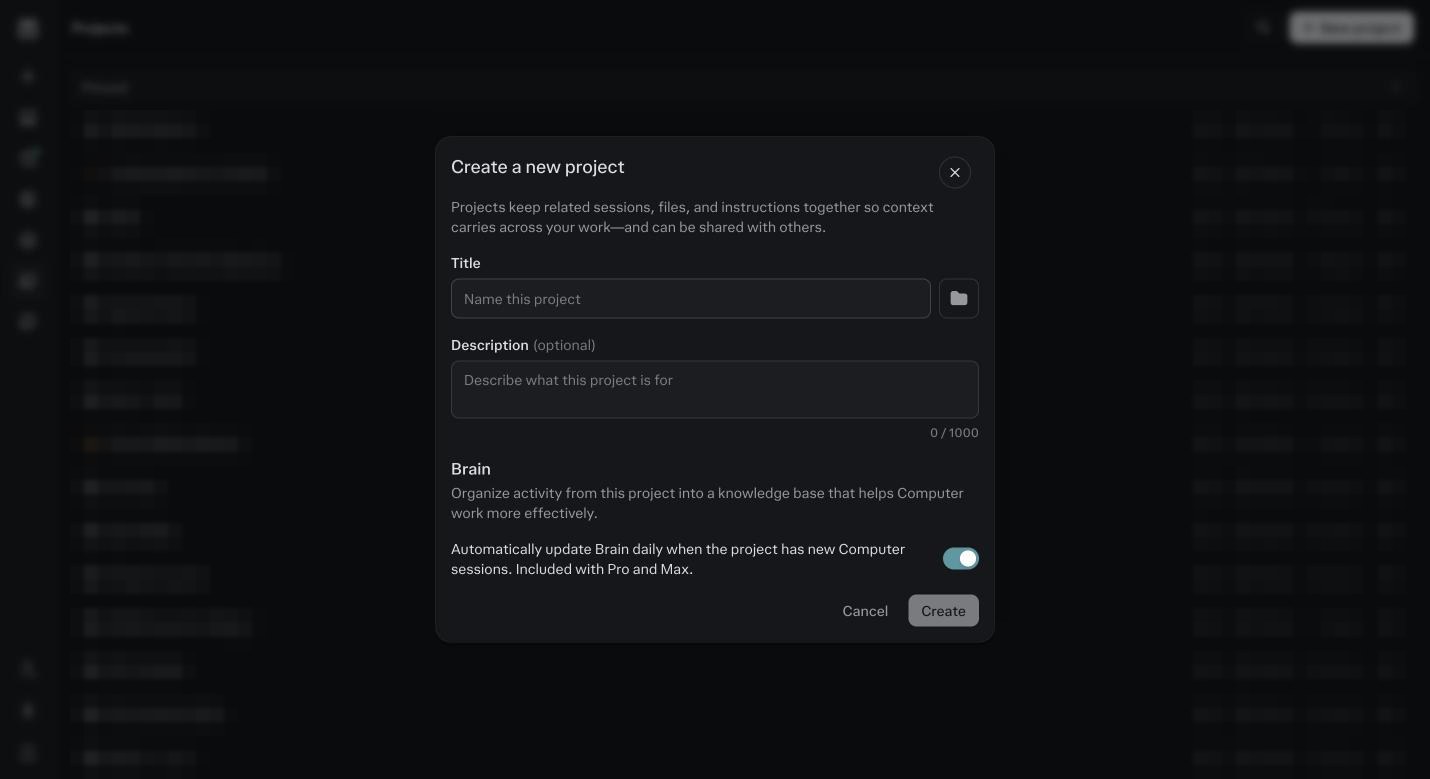
The New project dialog. Name it after your business, not after the agents. Description is optional, one line is plenty. Name it after your business.
Pick an icon if you like, it helps once you have more than one. Create it. You land on the Project home: a composer at the top, Artifacts and Sessions in the middle, and a right column with Instructions, Sources, Skills and Automations.
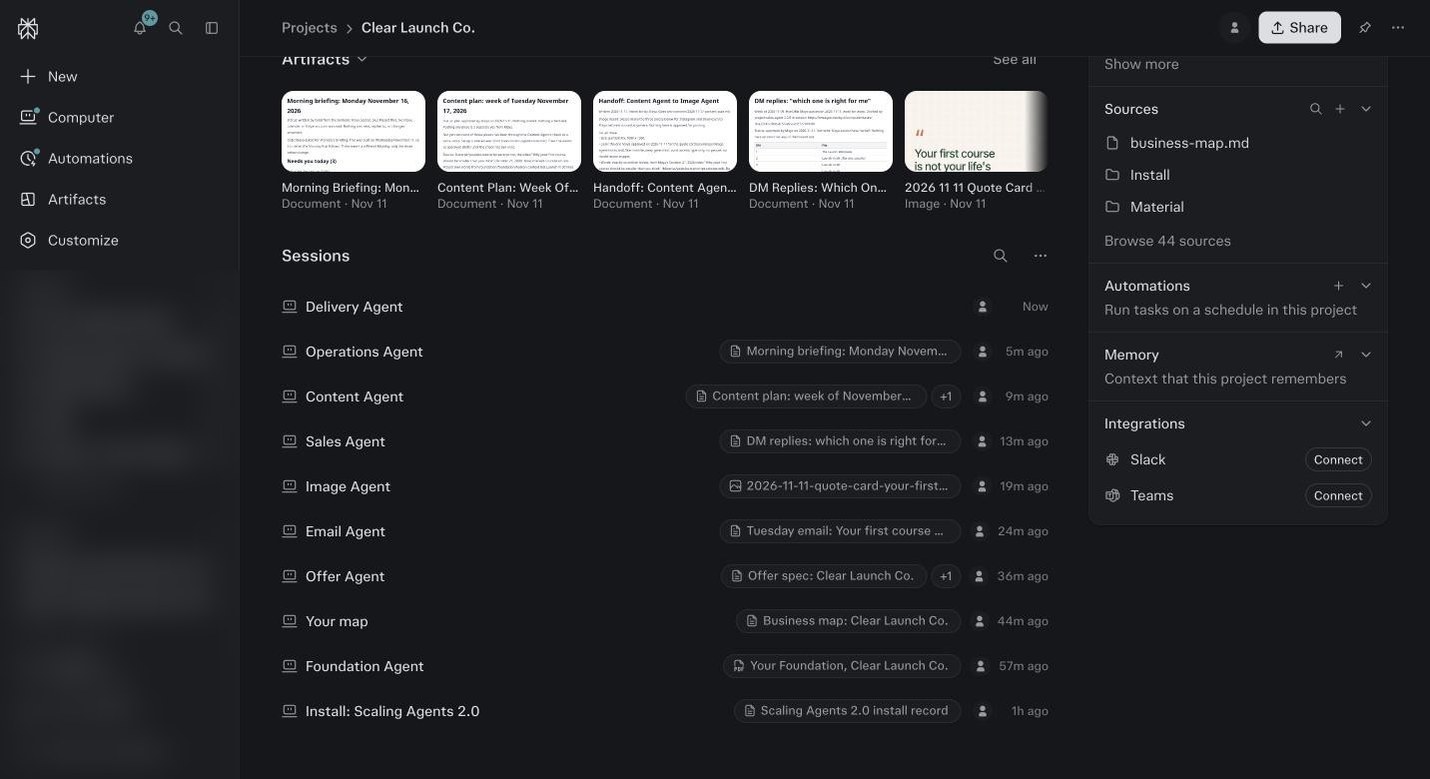
A Project home in a demo account. Composer on top, Instructions and Sources on the right, sessions and artifacts in the middle. Click the pencil next to Instructions.
Paste Block C from module 5. If you skipped module 5, use the template at the bottom of this module, fill in the brackets, and paste that. Either way the last sentence must be there word for word: Never send, spend, publish, or change anything outside this conversation without asking me first. Save.
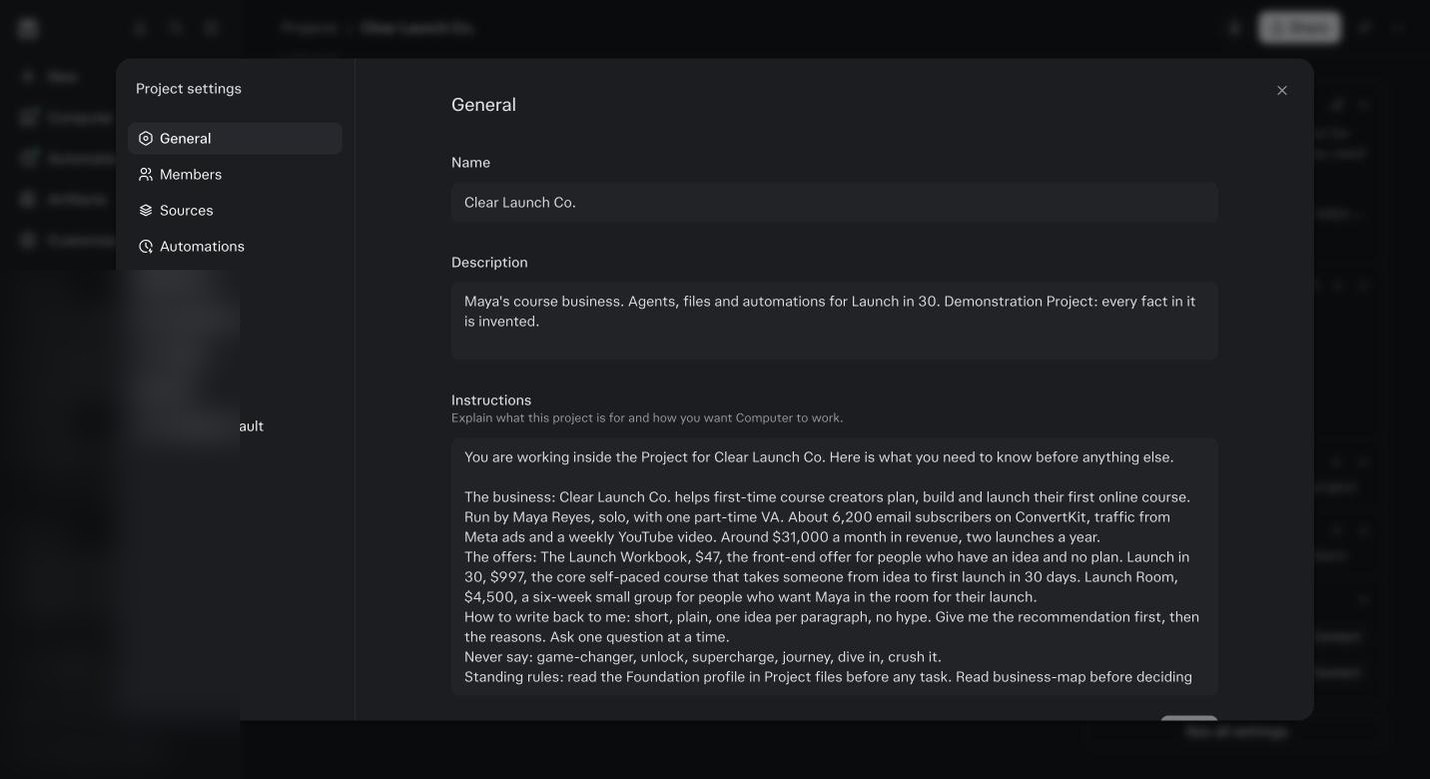
Project settings, General. The Instructions box. Under 8,000 characters. Every session in this Project reads it first. Click the plus next to Sources.
Choose Add files from cloud, pick Google Drive, and select your Material folder. Upload your sketch from module 3 here too, if it is not already in the folder. The Project can now read everything in that folder.
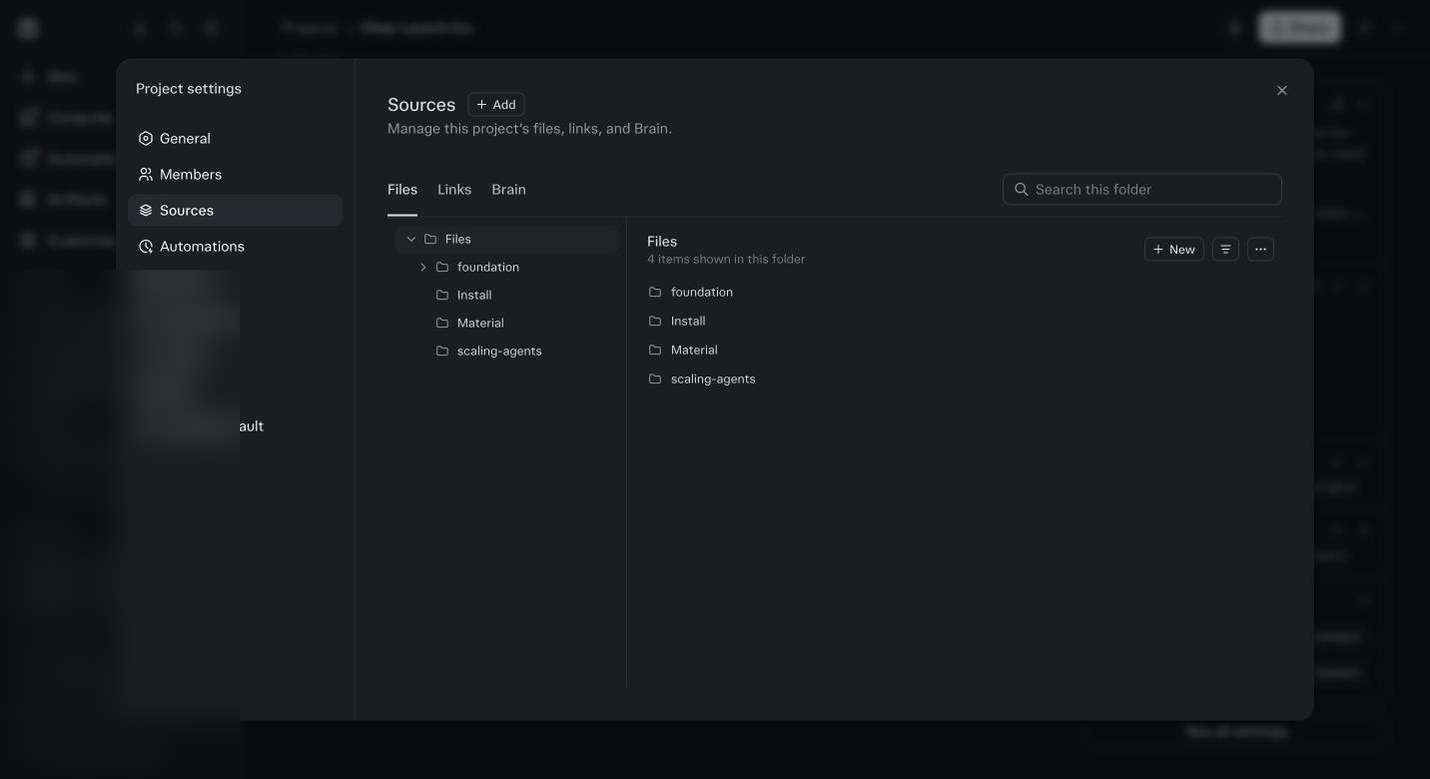
Sources. Your Material folder from Drive and any files you upload directly. Foundation reads from here. Open General and set the defaults.
Default mode Computer. Default effort High. Every session you start here begins there, and you move it by hand when a job calls for it.
Open Project settings and look at the Skills tab.
It is empty. That is where the Scaling Agents will appear after the install step in module 7. Close it.
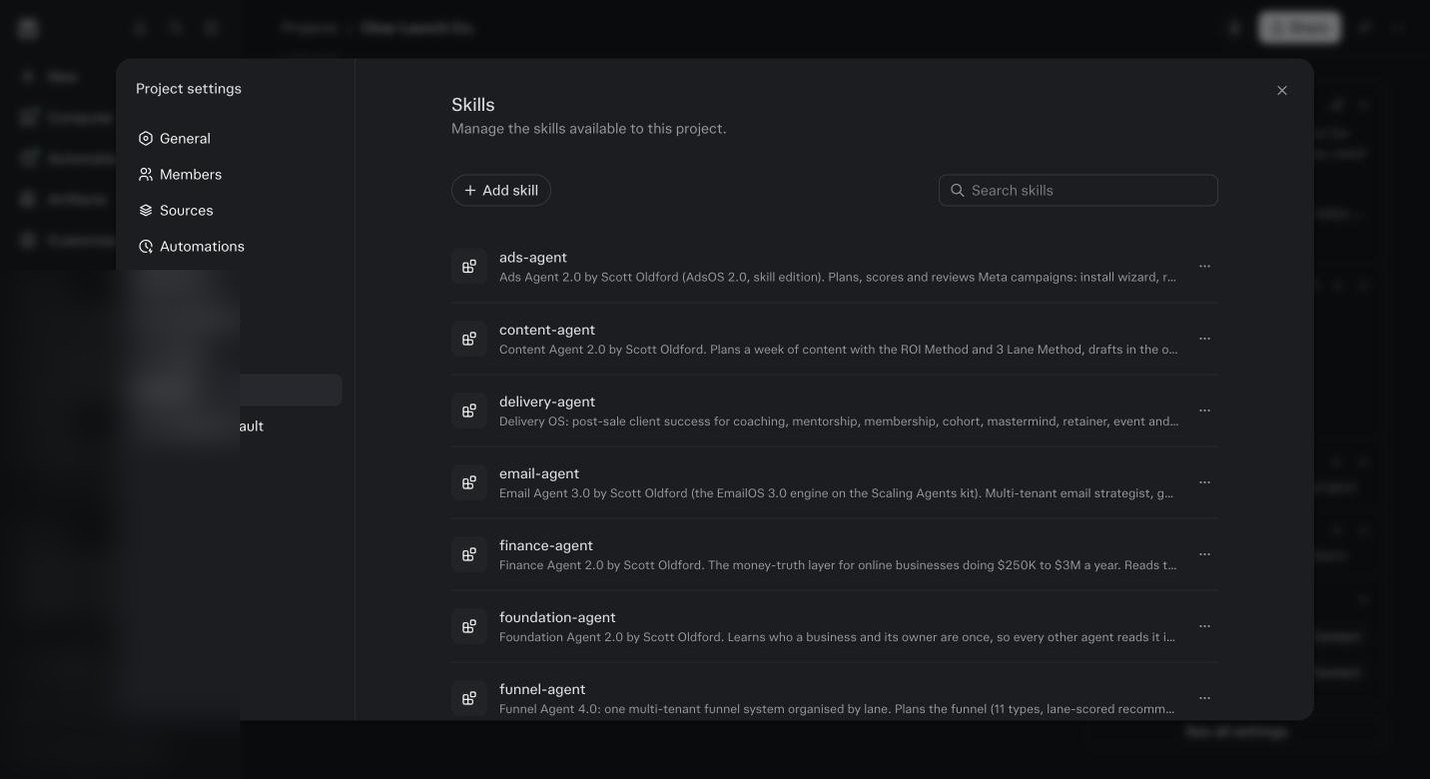
Project settings, Skills. Empty on a new Project. Full after the install in module 7. This is the demo after install, 21 agents saved to the Project, not to the personal library. Leave sharing on private unless you have a team.
Leave Memory on. Do not create agent sessions by hand yet. Module 10 does that with the right names and skills attached.
Test it.
In the Project composer, ask: read my Material folder and tell me in five lines what this business sells and to whom. If it answers with your real details, the Project is wired.
Every Part Of A Project, And What Goes In It
| Panel or setting | What it is | What you put there | When |
|---|---|---|---|
| General | The Project’s name, description, icon, and the Instructions box. Also the default mode and the default model for sessions here. | Your business name. One line description. Block C in Instructions. Default to Computer, effort High. | Module 6, today |
| Sources | The files the Project can read. Upload, add a folder, or add from Drive and other connected sources. Shows files saved and storage used. | Your Material folder from Drive. Your sketch. Anything an agent should be able to read. | Module 6, and every time you have a new file |
| Memory | The Project’s own Brain, built from its sessions and files. Switches for updating automatically and for using your personal memory in sessions here. | Both on for your own business. Personal memory off for a client Project. | Module 14 |
| Connectors | Which of your connected tools this Project may use, with instructions per connector. Also the Credential vault for API keys shared by the Project. | The connectors on your map. Your API keys from module 4. | Module 4 keys, module 6 to confirm |
| Skills | The agents installed in this Project. Add skill takes a zip. Personal and account skills also work here. | The Scaling Agents bundle. Updates to single agents. | Module 9 |
| Automations | The scheduled jobs that run inside this Project. | Your daily briefing, weekly review, and whatever your agents ask for. | Module 15 |
| Members | Who can see and edit. Owner, can edit, can view. Up to five on a personal account. | Your team, if you have one. Nobody, if you do not. | Only if you have a team |
| Integrations | Slack and Microsoft Teams channels bound to the Project. Messages there become Project context and sessions. | Skip unless your team runs on Slack. | Later, if ever |
Solo, Agency, Team
| Your business | How many Projects | What sits where | The one rule |
|---|---|---|---|
| Solo coach, consultant or creator | One | Everything in it. Material, sketch, map, Foundation, every agent, every automation. | One Project for the business, not one per agent and not one per offer. |
| Agency with clients | One per client, plus one for your own business | Each client Project has its own Material, Foundation, map and agents. Agents that apply to every client sit at the account level. Your own business has its own Project. | Nothing crosses between client Projects. That wall is the point. Only create a Project for the clients on your sketch, not every client you have ever had. |
| Team of two or more | One, shared | Everyone invited as Can edit. Each person connects their own Google and Microsoft logins. Shared API keys go in the Project’s Credential vault. | Use session creator’s memory off, so everyone works from the same Brain. Shared logins break connector cards, so each person connects their own. |
How To Name Things So The Project Stays Readable
The Project
Your business name. Clear Launch Co. Not Agents, not AI, not Scott’s System. When you have three Projects a year from now, you want to know which is which at a glance.
Sessions
The agent, then the job if it is a one off. Operations Agent. Sales Agent. Email Agent: Tuesday email. Weekly Review. Rename the second a session turns into something else. A Project where every session is named is a Project you can read in a month.
Files
What it is, then the date if it changes. business-sketch. business-map. offer-spec. The agents name their own files well. Yours should match.
Automations
The job and the cadence. Daily briefing 7am. Weekly review Sunday. Finance review Friday. When one misfires you will know which from the name.
The Project instructions, if you skipped module 5
You are working inside the Project for [business name]. Here is what you need to know before anything else.

The business: [what it sells, to whom, in two lines].
The offers: [name, price, who it is for, one line each].
How to write back to me: [short, plain, one idea per paragraph, no hype, and anything else you want].
Never say: [words and phrases you never use].
Standing rules: read the Foundation profile in Project files before any task. Read business-map before deciding what matters. Save anything another agent will need to Project files, not to this session.

Never send, spend, publish, or change anything outside this conversation without asking me first.
Before you ask
One Project or one per agent?
One per business. The agents live inside it, each in its own session. Split them across Projects and they cannot read each other’s work, which defeats the point of Foundation.
What goes in Instructions versus Custom instructions in Settings?
Settings follows you everywhere, so keep it short and about how you like to work. Project instructions are about this business and only apply inside it. Module 5 gives you a ready block for each.
Can I rename or move sessions later?
Yes. Click the session, open its menu, rename it or move it into a Project. Names like Operations Agent or Weekly Review are what keep the Project readable a month from now.
What is the difference between Sources and attaching a file to a session?
Sources are permanent. Every session in the Project can read them. A file attached to a session is temporary and only that session sees it. Anything Foundation or the agents need goes in Sources.
I changed a file in Drive. Why does the Project still see the old one?
Files added from a connector are one time copies. Add the file again, or ask the agent to fetch the latest version through the Drive connector.
Can I turn an existing session into a Project?
Yes. In a Computer session, choose Convert session to project. It suggests a name and instructions and carries the files over. Useful if you started working before you read this module.
How many Projects can I have?
No limit. But the right number for most people is one, and for an agency one per client. More than that and you spend your time wondering where things are.
What happens if I hit the file limit?
Ten thousand files or five gigabytes. Most people never get close. If you do, move raw recordings to Drive and keep the transcripts in the Project. The agents need the words, not the video.
Should I share my Project with my assistant?
If they will run agents, yes, as Can edit. They connect their own Google login. If they only need to read the output, Can view. Either way, turn Use session creator’s memory off so you both work from the same Brain.
I have clients. Can I keep them separate and still use the same agents?
Yes. One Project per client, each with its own files, connectors and instructions. The agents and skills are shared, they just read whichever Project they are standing in. Start with your next new client, not by moving everyone at once.